
Choose the edge treatment
A chamfer replaces an edge with a bevel. A fillet replaces it with a constant-radius round. Both depend on the selected solid and edge identities; they are editable features, not just rendering effects.
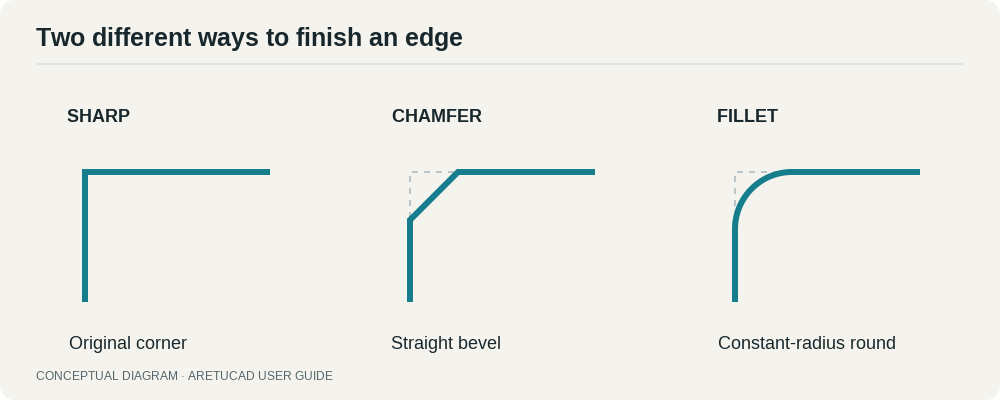
Conceptual cross-sections. Small sizes are a useful starting point; the allowed size depends on the surrounding geometry, not just the edge length.
Create a finish
- Complete any active preview and open Features > Modify > Chamfer / Fillet, or right-click a selected edge and choose Chamfer / Fillet to start with the selected edges.
- Choose Type and select eligible edges on one active solid body.
- Inspect the Edges list. Remove accidental selections individually.
- For a chamfer, choose equal distance or distance-angle mode and enter the applicable distance and angle. For a fillet, enter the radius.
- If needed, enable Tangent chain and check which connected edges it includes.
- Apply the value with field defocus/Tab or Commit, then inspect the valid preview.
- Choose Commit to accept the treatment or Cancel to discard it.
Numeric lengths use the document's display units even where the field lacks a unit suffix. Confirm the units before entering a small radius in a document that may be displaying metres or inches.
Vary a fillet's radius
A fillet can grow or shrink along its edge. In the panel, with Type set to Fillet, set Radius type to Variable. The panel then shows a Start radius and an End radius, and the radius changes evenly from one to the other along each selected edge. With Tangent chain on, a run of edges that flow into one another is treated as one edge, and the radius changes evenly from one end of the run to the other.
Which end is the start is fixed by the edge's position, not by the order you clicked: it is the end further towards negative X, then negative Y, then negative Z, in the body's own axes. If the fillet is the wrong way round, choose Reverse, which exchanges the two radii. Each radius can be linked to a variable.
A variable fillet has limits a constant one does not:
- It cannot go all the way round a closed edge, such as the rim of a hole, or round a closed run of tangent edges: the radius needs two ends to run between.
- Two variable fillets cannot meet at a corner. Select edges that do not share a corner, or that flow into one another with Tangent chain on.
- All the edges of one Fillet take the same two radii. For different radii on different edges, make more than one Fillet.
- Its faces are fitted surfaces, even on straight and circular edges where a constant fillet gives an exact cylinder or torus.
Variable radius is new and in initial test.
Set a distance-angle chamfer
The distance belongs to one of the two incident faces. Use the per-edge Flip distance face action when the offset is measured on the wrong face. Inspect the changed preview; reversing a view does not change which face owns the distance.
For several edges, review each row rather than assuming every edge has the same face orientation. Tangent-chain expansion can broaden the operation beyond the edge first clicked. Keep the selected edge list small while diagnosing failures.
Understand support limits
Straight and circular edges between flat, cylindrical, conical, spherical and toroidal faces are finished exactly. Other edges, such as those of splines, lofts, sweeps or curved intersections, are finished with a fitted blend that follows the edge. A few arrangements are refused with a reason: a closed edge whose curve is freeform, and a mitre or a corner of three edges where one of them is freeform. Some geometry that can be chamfered still cannot be filleted.
Start with a small value, a simple edge and a single selection. A large radius can collide with nearby faces or invalidate the solid. Circular blends also depend on the adjacent geometry and supported end conditions; an apparently minor offset can move a case outside the qualified family.
On failure, read the reported reason. When a finish is too large for its face, the message names the edge or crease it would cross, that face, the clearance and the largest size that fits. Two straight chamfers meeting at a corner whose faces are very slightly out of square are mitred off the sharp edge rather than refused. Reduce the size or selection only when that addresses the stated geometry problem. Do not repeatedly commit an invalid preview or expect the application to approximate an unsupported blend silently.
Revise the treatment
Use Edit from the finish's Feature Tree actions to change type, size or edge selection. Inspect the full result, including any later features. Cancel preserves the original finish. If an earlier feature removed or split a referenced edge, inspect the dependency information before replacing the reference.